


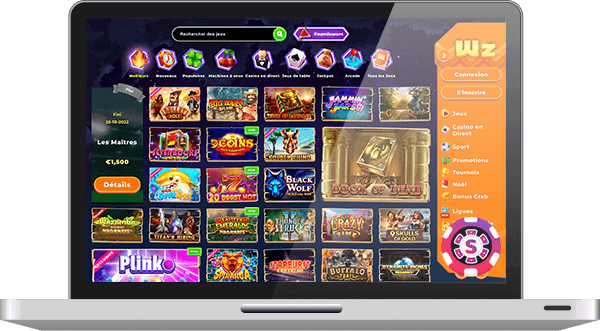
The Wazamba Casino mobile application integrates banking tools directly into the interface so players can credit accounts, place withdrawals, and review transaction histories without exiting the app. The same security layers that safeguard desktop play continue to work on phones, so users must comprehend which payment options operate on mobile devices, how verification steps deviate from desktop flows, and what fees or processing times apply to each method. This article outlines the supported deposit and withdrawal services, device compatibility requirements, installation procedures, in-app performance considerations, and troubleshooting steps for common payment issues that arise on Android and iOS handsets.
Performance, Data Usage and Safety Layers
The app shrinks images and transaction logs before transmission, keeping average monthly data usage below 120 MB for players who deposit and withdraw twice per week. During live-dealer sessions the data rate climbs to 1.5 MB per minute on a standard-definition stream; switching to the desktop site on Wi-Fi avoids this cost entirely. Battery impact stays moderate because the app pauses animations when the phone’s battery saver mode activates, although live games continue to run at reduced frame rates.
Transport Layer Security 1.3 scrambles every data packet between the handset and the operator’s servers, and certificate pinning prevents man-in-the-middle attacks even on public Wi-Fi networks. The app refuses connections when the device’s date and time settings deviate more than five minutes from network time, a safeguard against replay attacks that could compromise payment tokens. Users who receive a certificate warning are urged to close the app immediately and to check for operating-system updates before retrying.
Standalone Mode and Session Control
If the phone misses connectivity during a deposit, the app caches the transaction details locally and tries to resubmit when the signal returns. The cached data holds a 15-minute expiry; beyond that window the user must restart the deposit. Active sessions expire after 30 minutes of inactivity to protect banking functions, and the app clears the clipboard automatically after a card number or voucher code is pasted, reducing the chance of accidental exposure through other applications.
Accepted Mobile Payment Methods
The Wazamba Casino app shows every banking channel that the desktop site offers, but the interface presents them in a mobile-optimised menu that conceals desktop-only options such as bank wire transfers started through a third-party portal. Players can therefore pick between Visa and Mastercard debit or credit cards, several e-wallets, and prepaid vouchers without moving to a browser. Each method appears with its current minimum and maximum transaction limits, an estimated processing time, and any service fees that the provider levies. The list adjusts automatically when a payment partner adds new regional support or modifies its fee schedule, so users observe the same data that the cashier page shows on desktop.
Card payments stay the most common choice for first-time deposits because they require only the card number, expiry date, and CVV. The app saves these details in an encrypted token rather than the phone’s local memory, which lowers the risk of data exposure if the handset is stolen. E-wallet options such as Skrill and Neteller appear next in the menu; selecting either opens a secure web view that verifies the user through the wallet’s own two-factor system before delivering the confirmation to the app. Prepaid vouchers, including Paysafecard, demand the user to rub or copy a 16-digit code and type it manually, which works for players who like to keep banking details off their devices entirely.
Deposits and Withdrawal Ceilings in the App
Each payment method features its own lower and ceiling limits that the app displays before the user specifies an amount. Card deposits start at NZ$10 and go up to NZ$6,000 per transaction, with a daily aggregate cap of NZ$20,000 that resets at midnight New Zealand time. E-wallet deposits use the same minimum but allow up to NZ$10,000 per transaction and NZ$50,000 per day, indicating the higher velocity that these services accommodate. Prepaid vouchers respect the face value listed on the ticket, so a NZ$50 Paysafecard code cannot be increased beyond that amount inside the app.
Withdrawals processed through cards return funds to the same card used for deposit and have a minimum of NZ$20. Processing times vary from two to five business days based on the card issuer’s internal review. E-wallet withdrawals start at NZ$30 and usually are completed within 24 hours once verification is complete; however, first-time withdrawals above NZ$2,000 may initiate an additional security hold of up to 48 hours. Players can divide a large withdrawal across multiple days to keep below any daily ceiling the chosen provider applies.
Fee Schemes Shown Before Confirmation
The app calculates fees in real time and shows the net amount the player will receive before the confirm button is shown. Card issuers hardly ever charge fees for deposits, yet some international cards add a 2.5 % cross-border surcharge that the app highlights in red text. E-wallet deposits are free, but withdrawals carry a 1 % fee or a NZ$2.50 flat fee, whichever is higher; the exact figure is shown beneath the requested amount. Prepaid voucher redemptions have no operator fee, although the voucher provider may impose an activation charge listed on the back of the card.
Setting up the App on iOS Devices
Apple mobile device users get the Wazamba Casino app through the App Store by finding the exact title. The store listing indicates compatibility with iOS 13.0 and later, supporting all devices launched since the iPhone X. Because the app holds a gambling classification, Apple requires age verification at the account level; users under 18 are unable to proceed past the initial launch screen. Once installed, the app seeks permission to access the device camera for document uploads and to send push notifications for payment alerts.
iOS applies stricter sandboxing than Android, so the app cannot access files outside its own container. This limitation means that proof-of-address PDFs need to be saved inside the Files app or downloaded directly from email before the upload step. The app’s internal document scanner converts photos to greyscale and compresses them to 1 MB to reduce mobile data usage during submission. Updates appear automatically through the App Store, and the version history lists bug fixes that influence payment flows, such as corrected decimal handling for New Zealand dollar amounts.
Hardware-Specific Performance Notes
Older iPads running iOS 13 could experience slower camera focus during ID capture; the workaround involves holding the device on a flat surface and tapping the screen to lock focus before taking the photo. On iPhone 14 and later models, Face ID can be used to authorise withdrawals once the feature is enabled in the app’s security settings. This takes the place of the PIN entry step and shortens the time between pressing “Withdraw” and receiving the confirmation screen.
Verification Steps Required on Mobile
Before any withdrawal can be processed, the app asks the user to complete identity verification directly from the account menu. The first screen requests a government-issued photo ID such as a New Zealand driver licence or passport. The camera interface inside the app takes both sides of the document and immediately verifies image clarity; blurry uploads generate an on-screen alert that prevents submission until the user retakes the photo under better lighting. Once the ID clears automated checks, the system demands a selfie holding the same document beside the face so that facial recognition software can match the two images.
Proof of address follows if the account shows a recent address change or if the first withdrawal exceeds a threshold set by the operator. A recent utility bill or bank statement dated within the last three months satisfies this requirement. The app allows PDF or JPEG files up to 5 MB, and the upload progress bar shows the remaining time based on the user’s current mobile data speed. When both documents obtain approval, a green tick appears beside the account balance, and the withdrawal button turns active for all previously restricted methods.
Schedules for Document Review
Automated ID checks normally finish within five minutes when the submitted images fulfill quality standards. Manual reviews, triggered when the system flags unusual lighting or partial text, lengthen the wait to a maximum of 24 hours on business days. Players are sent push notifications at each stage, and tapping the notification opens the exact screen where additional information, if requested, can be supplied. Weekend submissions use the same automated path but may be held until Monday morning for human verification if the case demands it.
Installing the App on Android Devices
Android users situated in New Zealand have to download the APK file right from the Wazamba Casino site since the app is not featured in the Google Play Store. The site recognizes the handset’s operating system and presents a button titled “Download APK for Android.” Tapping the button initiates the file transfer over HTTPS, and the browser displays the download progress in the notification shade. Once the file arrives in the Downloads folder, the user launches it; the system then asks for permission to install applications from unknown sources, a toggle situated under Settings > Security on most devices operating Android 8 or later.
After installation completes, the app icon is visible on the home screen or app drawer. The first launch asks the user to accept the data-sharing policy and to enable push notifications for deposit confirmations and withdrawal status updates. Android 10 and above routinely place the app in a restricted battery-optimisation category; users who experience delayed notifications have to navigate to Settings > Apps > Wazamba > Battery and select “Unrestricted” to secure timely alerts. Sideloading does not impact the app’s encryption layers, so banking credentials remain protected by the same TLS protocols used on the desktop site.
Refreshing the Android App
Because the app is sideloaded, app download casino wazamba, Google Play cannot send updates. Instead, the app verifies the server for a newer APK version each time it opens and shows a banner if one is available. Tapping the banner fetches the update in the background; once the download completes, the user has to manually open the new APK and confirm the installation. The process keeps login credentials and stored payment tokens, so no re-verification is required after the update completes. Players who turn off automatic update checks must monitor the version number in the app’s “About” screen and compare it against the number displayed on the download page.
Fixing Common Payment Errors
When a card deposit fails with the message “Transaction declined,” the app presents the issuer’s response code. Codes commencing with 05 or 51 indicate insufficient funds or daily limits hit at the bank, while code 14 signals an incorrect card number entry. The app provides a “Call bank” button that launches the phone dialler with the issuer’s customer-service number pre-filled for New Zealand cardholders. Retrying the same card within ten minutes often works after the issuer lifts a temporary fraud hold.
E-wallet errors usually originate from mismatched email addresses between the wallet account and the Wazamba profile. The app instructs the user to verify both addresses and to resend the confirmation email from the wallet provider. If the error remains, the in-app chat directs directly to a payments specialist who can unlock the pending transaction or advise the user to create a new wallet account. Prepaid voucher failures occur when the code has already been redeemed elsewhere; the app records the attempt and informs the player to contact the voucher issuer with the code and the redemption timestamp shown on the failure screen.
Changing Payment Preferences
Players who change cards or switch e-wallets can clear stored payment methods from the “Banking” section of the app menu. The delete action demands re-entry of the account password and, for withdrawals above NZ$500, a one-time SMS code dispatched to the registered phone number. Once removed, the method vanishes from the quick-select list but remains visible in the transaction history for record-keeping purposes. This separation makes sure that historical data keeps intact while active credentials are purged from the device.
Advised Steps for First-Time Mobile Deposits
First-time users should finish identity verification before making their first deposit so that withdrawal options remain open once funds are added. The process starts by launching the app and selecting “Verify Account” from the profile menu. After submitting the required documents and obtaining approval, the player navigates to the cashier screen to choose a payment method. The app shows available options in order of processing speed, with cards placed first, and then e-wallets and prepaid vouchers.
Before inputting an amount, the user should examine the displayed limits and any cross-border fees that may be applicable to the chosen card. Picking an e-wallet launches a secure web view where login credentials are input directly on the provider’s site rather than inside the casino app. Once the transaction completes, the balance refreshes within seconds and a receipt is displayed in the transaction history. Players who like to keep banking details off their phones can buy a prepaid voucher at a local retailer and type the code manually.
- Check that the phone’s operating system meets the minimum version requirement specified on the download page.
- Activate push notifications so that deposit confirmations and withdrawal status updates are received without delay.
- Keep a copy of each transaction receipt in a dedicated folder for personal accounting records.
- Contact support through the in-app chat if a deposit does not arrive within the stated processing window.
Recente reacties